Start a run!
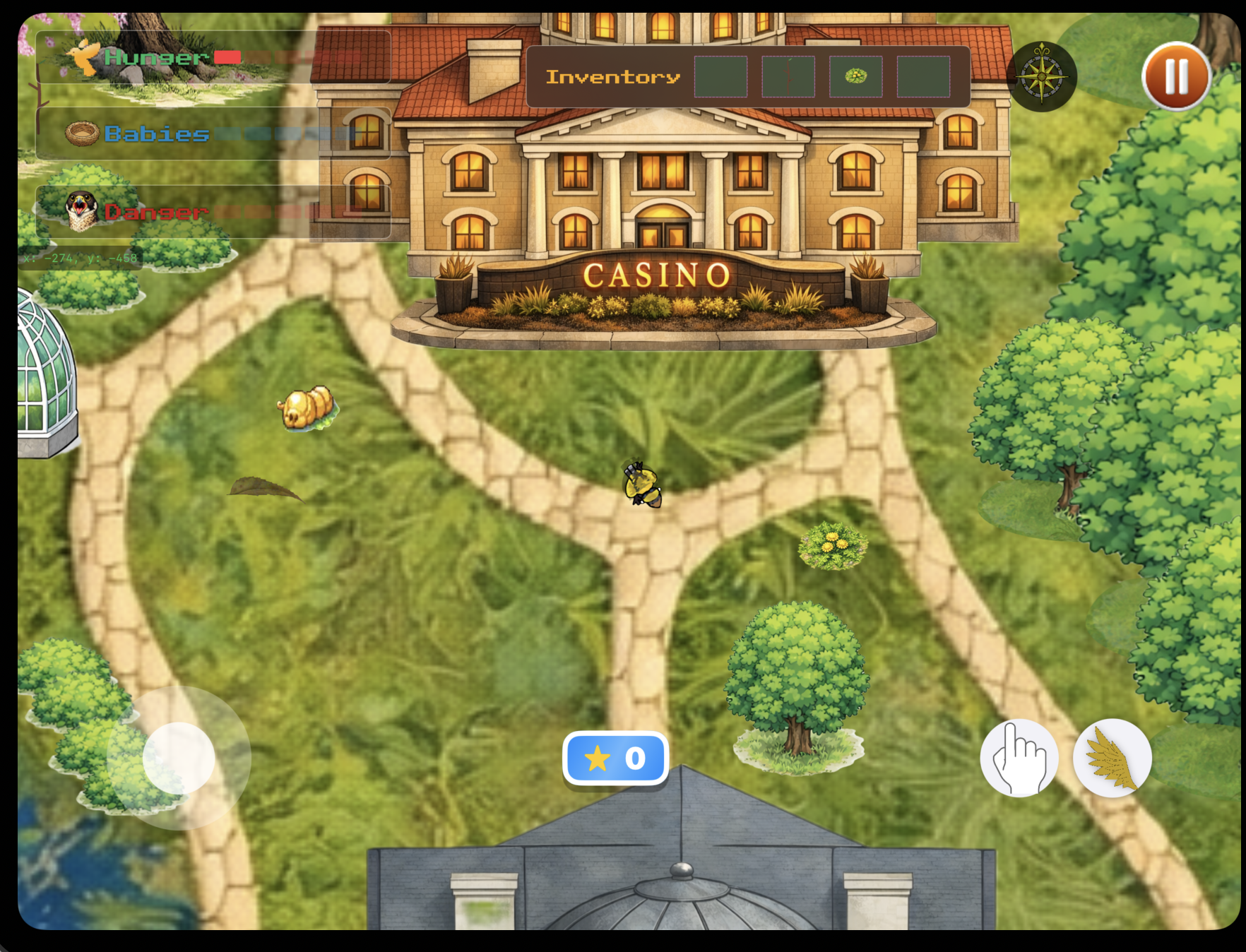
Begin your journey on Belle Isle, jump into quick challenges, and start building score momentum.
A high-score survival game where players master memory, coordination, speed, and reflexes across five experiences.
Take Flight is a Belle Isle inspired, 5-in-1 mini game collection built in 6 weeks at the Apple Developer Academy.
The game loop focuses on surviving, growing your nest, and chasing high scores across challenges focused on memory, coordination, speed, and reflexes.
Team: 5
Role: iOS Developer
Timeline: 01/11/2026 - 02/20/2026
Begin your journey on Belle Isle, jump into quick challenges, and start building score momentum.
Rotate through mini games that test memory, coordination, speed, and reflexes.
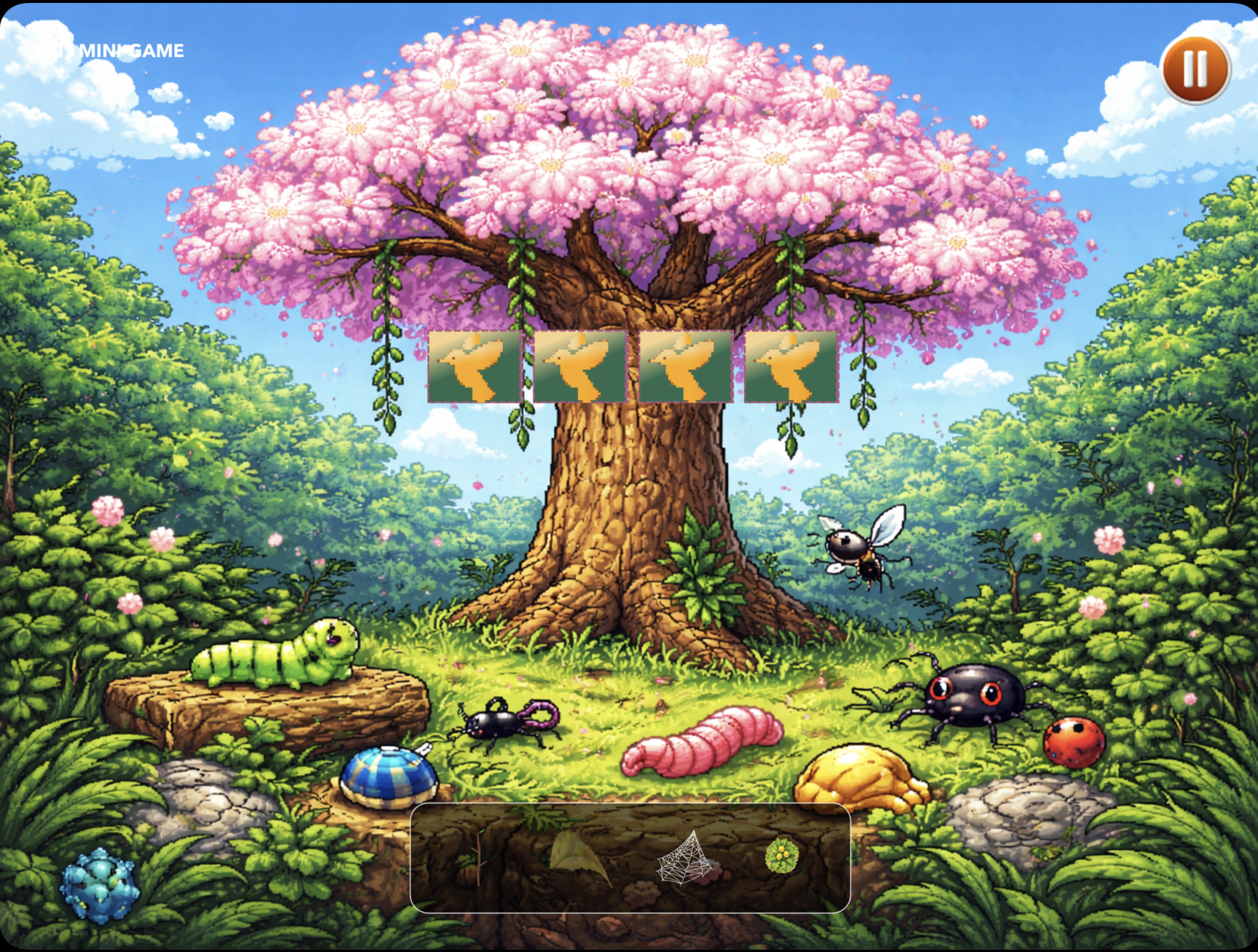
Survive longer, manage multiple nests, and watch your high score climb.
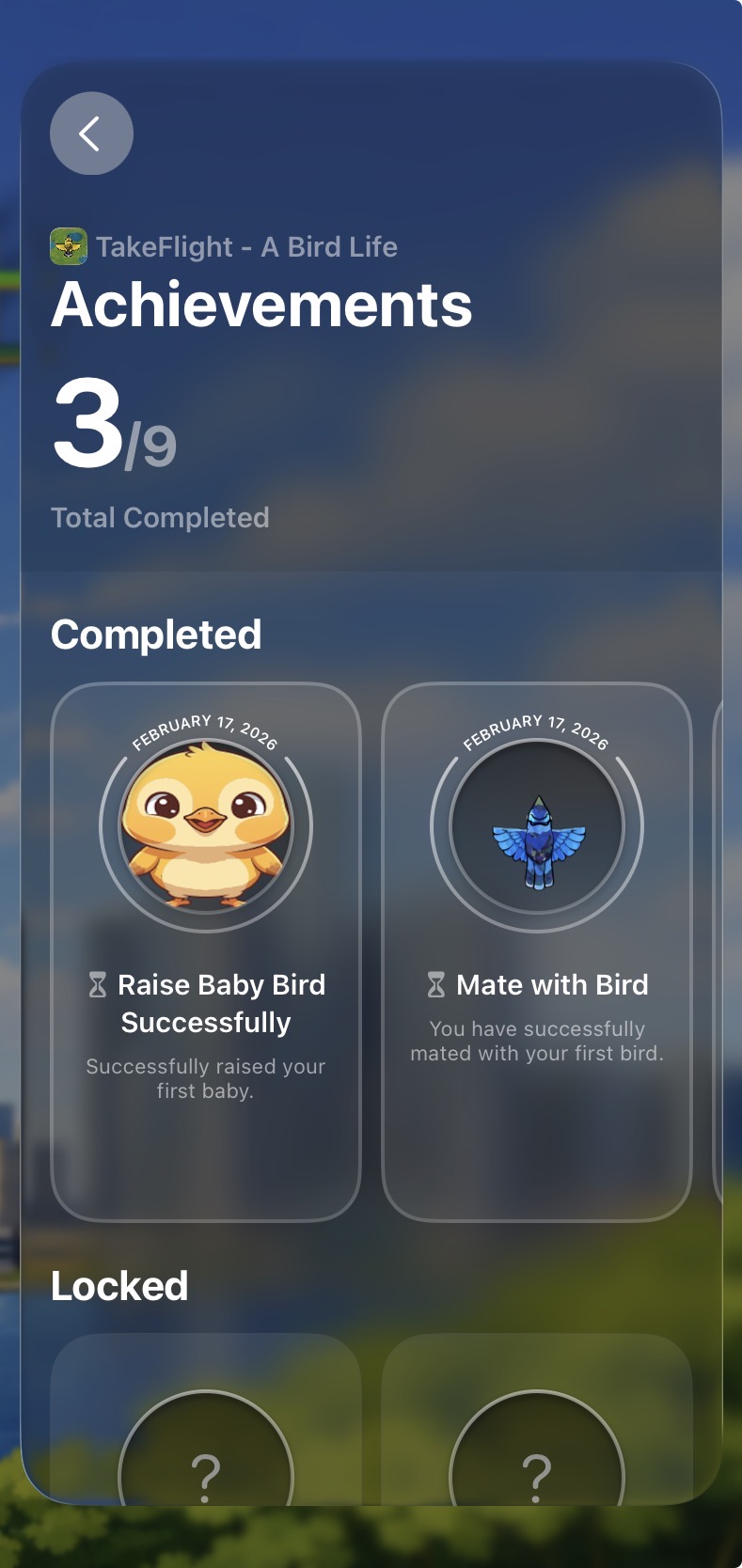
Track achievement progress and jump back in with smarter strategies each run.
Challenge: Take Flight was my first time using SpriteKit. I had to get up to speed on the scene graph, physics bodies, the update loop, and how nodes, cameras, and collision detection all fit together while actively building the game.
Solution: I leaned on Apple’s documentation and broke the framework down system by system, building small isolated tests before wiring each piece into the real game. Pairing it with SwiftUI from the start also helped me understand where SpriteKit’s responsibilities ended and my own code began.
Result: Shipped a full multi-scene SpriteKit game with a working physics-driven player, camera system, and collision logic.
Challenge: Five separate mini-games each had their own scene and logic, but they all needed to share the same hunger bar, score, and progression state. Getting them to feel like one game instead of disconnected screens was the core design problem.
Solution: I built a centralized RunState model that every scene reads from and writes to. Scene transitions pass the same model forward so hunger, score, and context carry over seamlessly between challenges.
Result: The game feels like a single survival loop rather than a playlist of mini-games.
Challenge: The game needed to support touch-based joystick input on device and keyboard input in the simulator, both feeding the same SpriteKit movement system. Building one input layer that handled both without branching all over the codebase was tricky.
Solution: I created a custom SwiftUI joystick that normalizes drag input into a CGPoint velocity clamped to the joystick radius. Keyboard input writes the same velocity property. SpriteKit only ever reads one value regardless of source.
Result: Consistent player movement on both device and simulator with no platform-specific branching in the game logic.
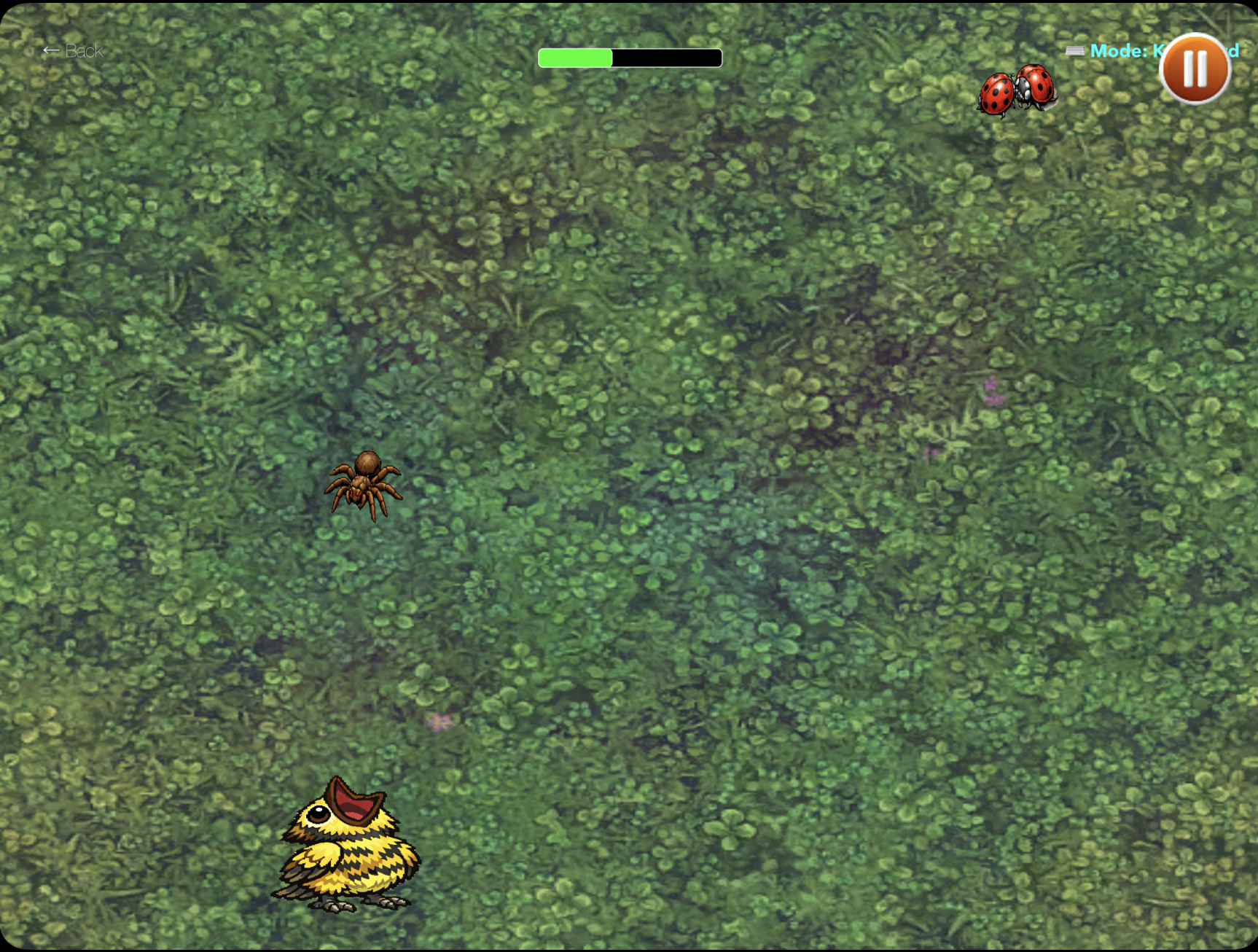
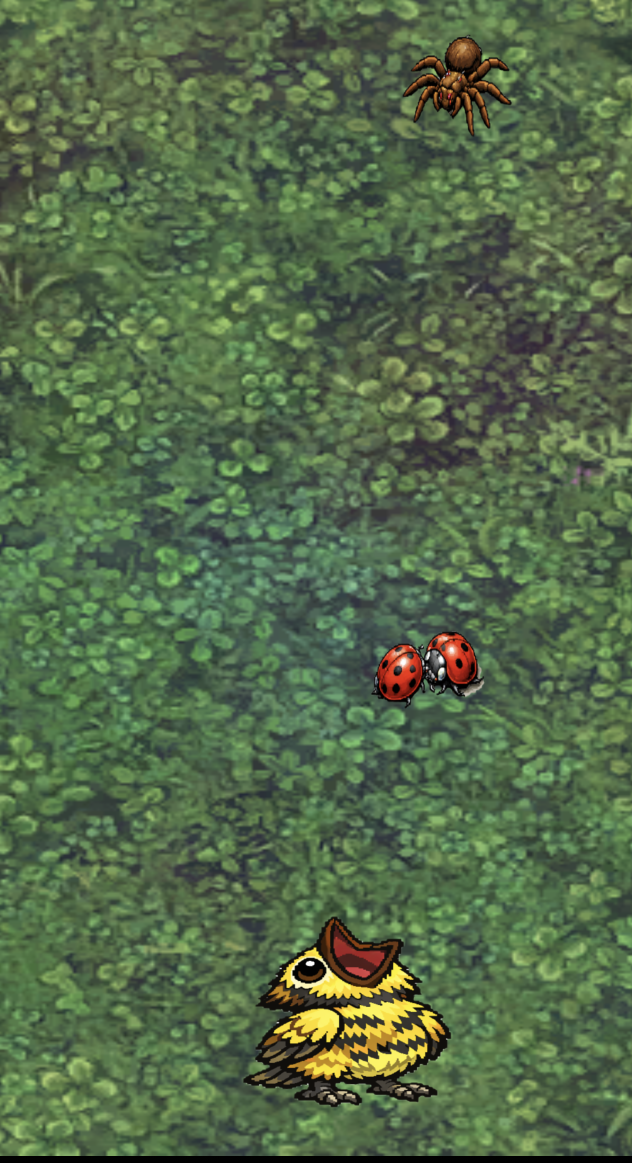
Keep your hunger up by testing coordination with the quick feeding mini game.
Collect materials around the island and find the perfect nesting tree.
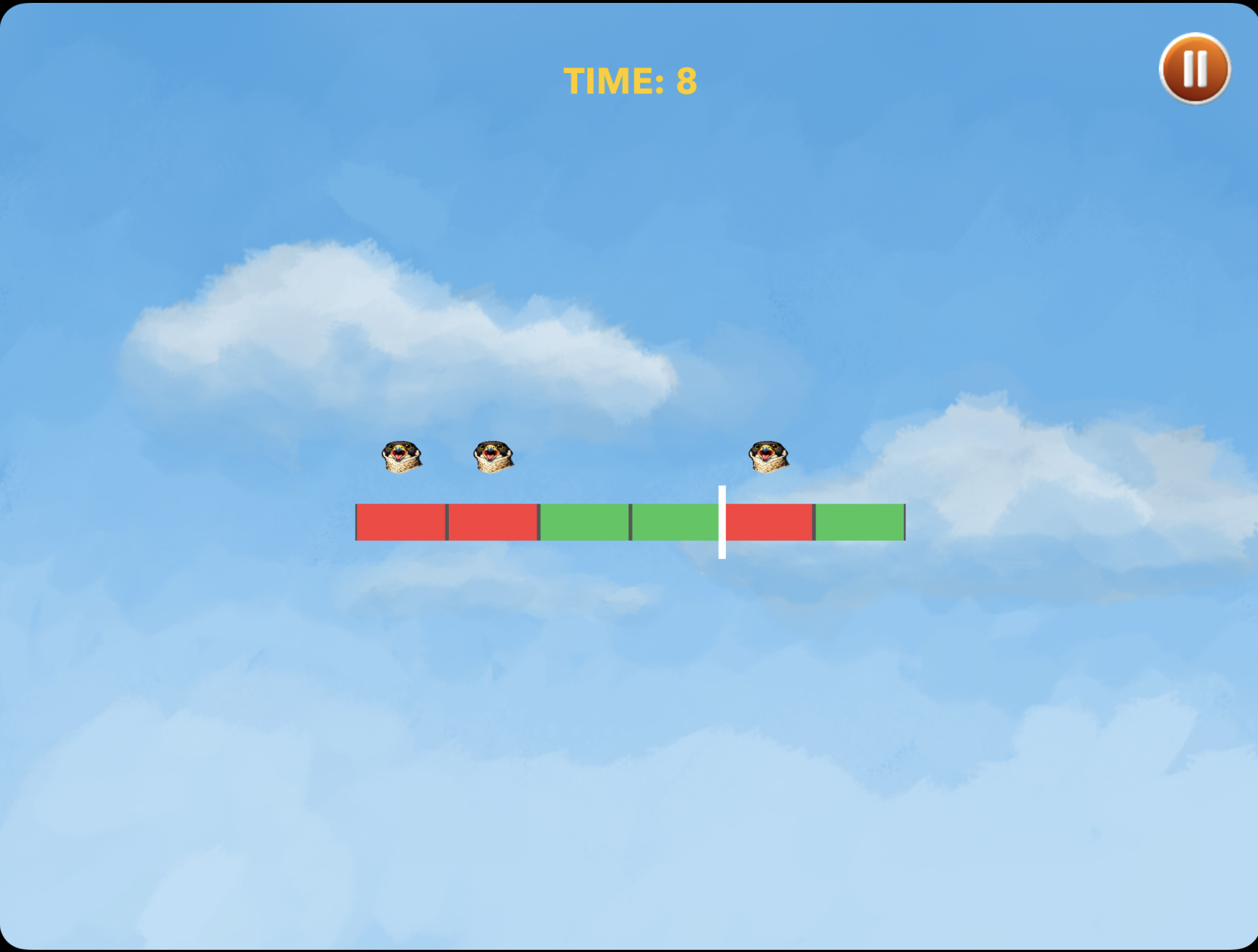
Dodge dangerous threats around the island to keep your run alive.
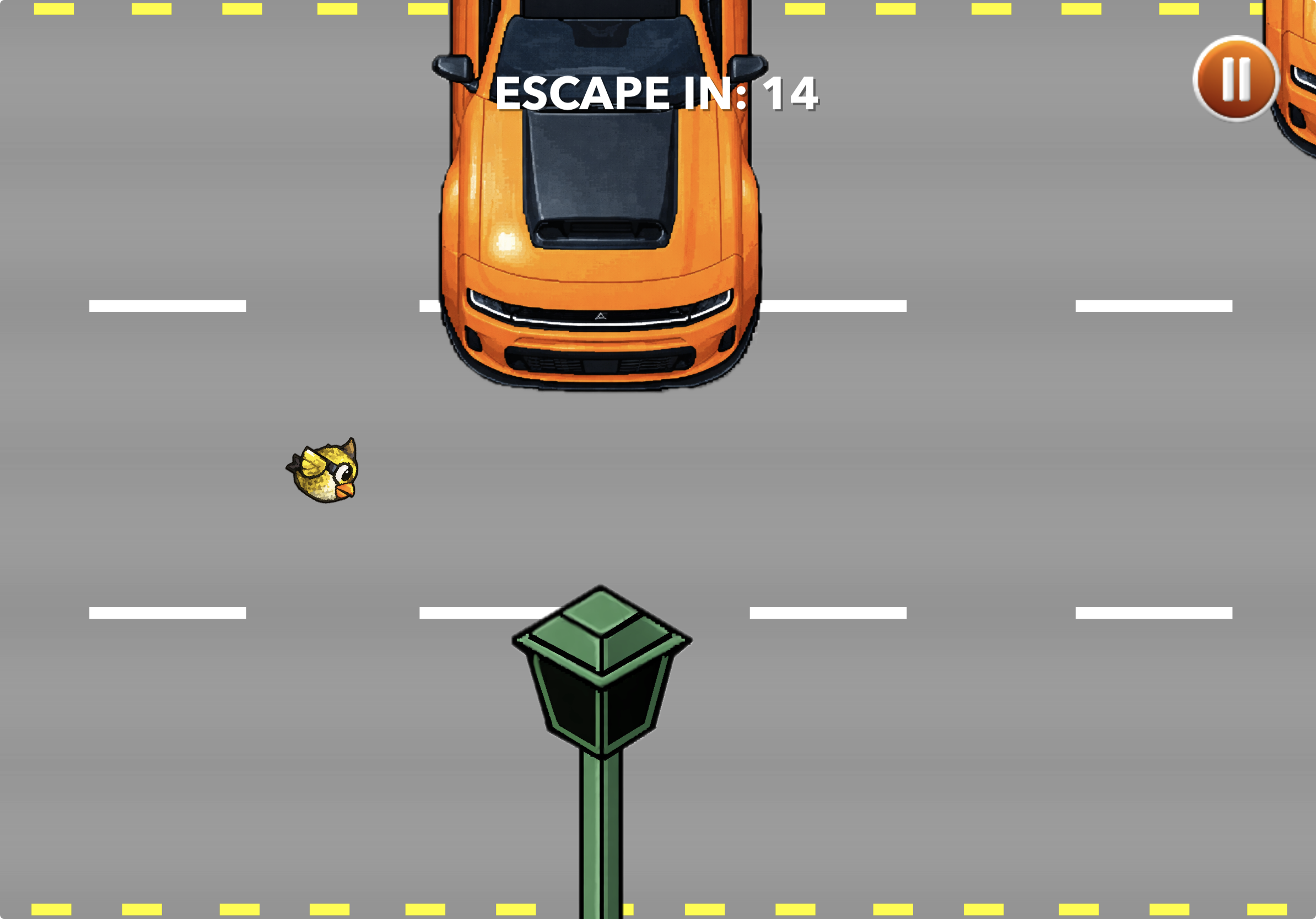
Navigate your way out under pressure and survive the final chase.
I worked across the whole game, but focused most on the systems that made it feel complete and replayable.
Highlights from the core systems I owned and implemented in Take Flight.
Authenticates the local player with Game Center on launch and reports achievement completions with a native banner.
// Call once at app start or main menu.
@MainActor
func authenticateLocalPlayer(presentingViewController: UIViewController?) async {
    let localPlayer = GKLocalPlayer.local
    localPlayer.authenticateHandler = { viewController, error in
        if let viewController, let presentingViewController {
            presentingViewController.present(viewController, animated: true)
            return
        }

        if let error {
            print("Game Center auth error: \(error.localizedDescription)")
            return
        }

        self.isAuthenticated = localPlayer.isAuthenticated
    }
}

// Set an achievement to 100% immediately.
func completeAchievement(id: String, showBanner: Bool = true) async {
    guard GKLocalPlayer.local.isAuthenticated else { return }

    let achievement = GKAchievement(identifier: id)
    achievement.percentComplete = 100
    achievement.showsCompletionBanner = showBanner

    do {
        try await GKAchievement.report([achievement])
    } catch {
        print("Achievement report error: \(error.localizedDescription)")
    }
}A SwiftUI joystick built with DragGesture that clamps input to a circle radius and writes a normalized CGPoint velocity into the shared ViewModel for SpriteKit to read each frame.
// Custom Joystick
ZStack {
    Circle() // Background
        .fill(.white.opacity(0.3))


    Circle() // Thumbstick
        .fill(.white.opacity(0.8))
        .frame(width: radius, height: radius)
        .offset(x: fingerLocation.x, y: fingerLocation.y)
        .gesture(
            DragGesture(minimumDistance: 0)
                .onChanged { value in
                    isDragging = true

                    let dx = value.translation.width
                    let dy = value.translation.height

                    // Clamp to joystick radius
                    let distance = hypot(dx, dy)
                    let angle = atan2(dy, dx)
                    let clamped = min(distance, radius)

                    // Knob position inside the base circle
                    let knob = CGPoint(x: cos(angle) * clamped, y: sin(angle) * clamped)
                    fingerLocation = knob

                    // Normalize and flip Y so up is positive in SpriteKit
                    viewModel.joystickVelocity = CGPoint(x: knob.x / radius, y: -knob.y / radius)
                }
                .onEnded  { _ in
                    isDragging = false
                    fingerLocation = .zero
                    viewModel.joystickVelocity = .zero
                }
        )


}
.frame(width: radius * 2, height: radius * 2)
.contentShape(Circle())A RunState enum drives tutorial, active, and game-over phases. Contextual onboarding sheets fire at the right moments and dismiss cleanly into the active run.
if viewModel?.tutorialIsOn == true, viewModel?.inventoryFullOnce == false {
    viewModel?.showMainGameInstructions(type: .nestBuilding)
    viewModel?.inventoryFullOnce = true
}

enum RunState {
    case tutorial
    case active
    case gameOver
}

@Published private(set) var state: RunState = .tutorial

func completeTutorial() {
    state = .active
    showTutorialOverlay = false
}

func restartToTutorial() {
    state = .tutorial
    showTutorialOverlay = true
}

struct MainOnboardingView: View {
    @ObservedObject var viewModel: MainGameView.ViewModel
    @Environment(\.dismiss) var dismiss
    let type: MainGameView.ViewModel.InstructionType

    var body: some View {
        VStack(spacing: 16) {
            Text("Tutorial").font(.system(.title, design: .rounded)).bold()
            Text(viewModel.mainInstructionText(for: type))
                .multilineTextAlignment(.center)

            let resources = viewModel.mainInstructionImage(for: type)
            if let imageName = resources.first {
                Image(imageName).resizable().scaledToFit()
            }

            Button("Start") { dismiss() }
                .buttonStyle(.borderedProminent)
        }
        .presentationDetents([.medium])
    }
}The SpriteKit update loop clamps delta time to a safe range, ticks down hunger on an accumulator, persists player position every second, then drives movement and camera follow.
override func update(_ currentTime: TimeInterval) {
    handleKeyboardMapInput()
    if viewModel?.isMapMode == true { return }

    viewModel?.currentMessage = ""

    if lastUpdateTime == 0 { lastUpdateTime = currentTime }
    let rawDelta: CGFloat = CGFloat(currentTime - lastUpdateTime)
    let deltaTime = min(max(rawDelta, 1.0/120.0), 1.0/30.0)
    lastUpdateTime = currentTime

    positionPersistAccumulator += deltaTime
    if positionPersistAccumulator >= 1.0 {
        positionPersistAccumulator = 0
        if let player = childNode(withName: "userBird") {
            viewModel?.savedPlayerPosition = player.position
        }
        viewModel?.savedCameraPosition = cameraNode.position
        viewModel?.saveState()
    }

    healthAccumulator += deltaTime
    if healthAccumulator >= 35.0 {
        healthAccumulator = 0
        if let current = viewModel?.hunger, current > 0 { viewModel?.hunger = current - 1 }
    }

    guard let player = childNode(withName: "userBird") else { return }

    updatePlayerPosition(deltaTime: deltaTime)
    clampPlayerToMap()
    updateCameraFollow(target: player.position, deltaTime: deltaTime)
    clampCameraToMap()
}The final build feels like one survival game, not a bunch of disconnected mini-games. Everything feeds the same loop, keep hunger up, avoid predators, build nests, and push your score higher, so each challenge has a clear purpose. Shared input, UI messaging, and scene transitions keep the experience consistent across SwiftUI + SpriteKit.
Next, I'd add adaptive difficulty so the game adjusts based on how you're playing, things like predator pressure, timers, and spawn rates. I'd also add more little milestone moments so progression feels clearer between the big goals. And I'd start tracking a few more stats besides score and hunger (time survived, nests completed, failed attempts) so I can balance the difficulty and pacing using real numbers instead of guessing.